Preparing for Setup
Currently Nassella requires users to set up the following three services in order to take advantage of Nassella's capabilities. If you use a different service to accomplish these actions and would like the ability to use Nassella with it, please contact us here: https://www.nassella.org/contact/
Digital Ocean
Digital Ocean is a cloud-computing provider that offers on-site infrastructure and managed services to build, deploy, host, and scale applications. Nassella can make a website hosted here easier to maintain.
Cloudflare
Cloudflare is a global internet infrastructure and security company. Nassella uses Cloudflare for DNS
- Before setting up Nassella, set up a website domain on Cloudflare or link to your Digital Ocean domain. You can follow Cloudflare's documentation here to connect your existing digital ocean domain.
- Setup an API token for any domain that you want to use with Nassella. Follow cloudflare's documentation here. Use the "Edit Zone DNS" template and select the desired domain.
- Take note of your Zone ID, Account ID, and API Token. Nassella will need these values during setup. To find these values navigate to the Cloudflare domains overview page, select the domain, scroll down, and note the Zone ID and Account ID in the API information box. Click on the link for Get Your API Token to find the API Token value.
Back Blaze
Back Blaze is a cloud storage and backup company. Nassella uses Back Blaze to maintain backups of anything hosted with Nassella.
Setup New Instance
Services
- Click the "Create New Instance" Button
- Enter the credentials for the required services. These accounts must be created before using Nassella.
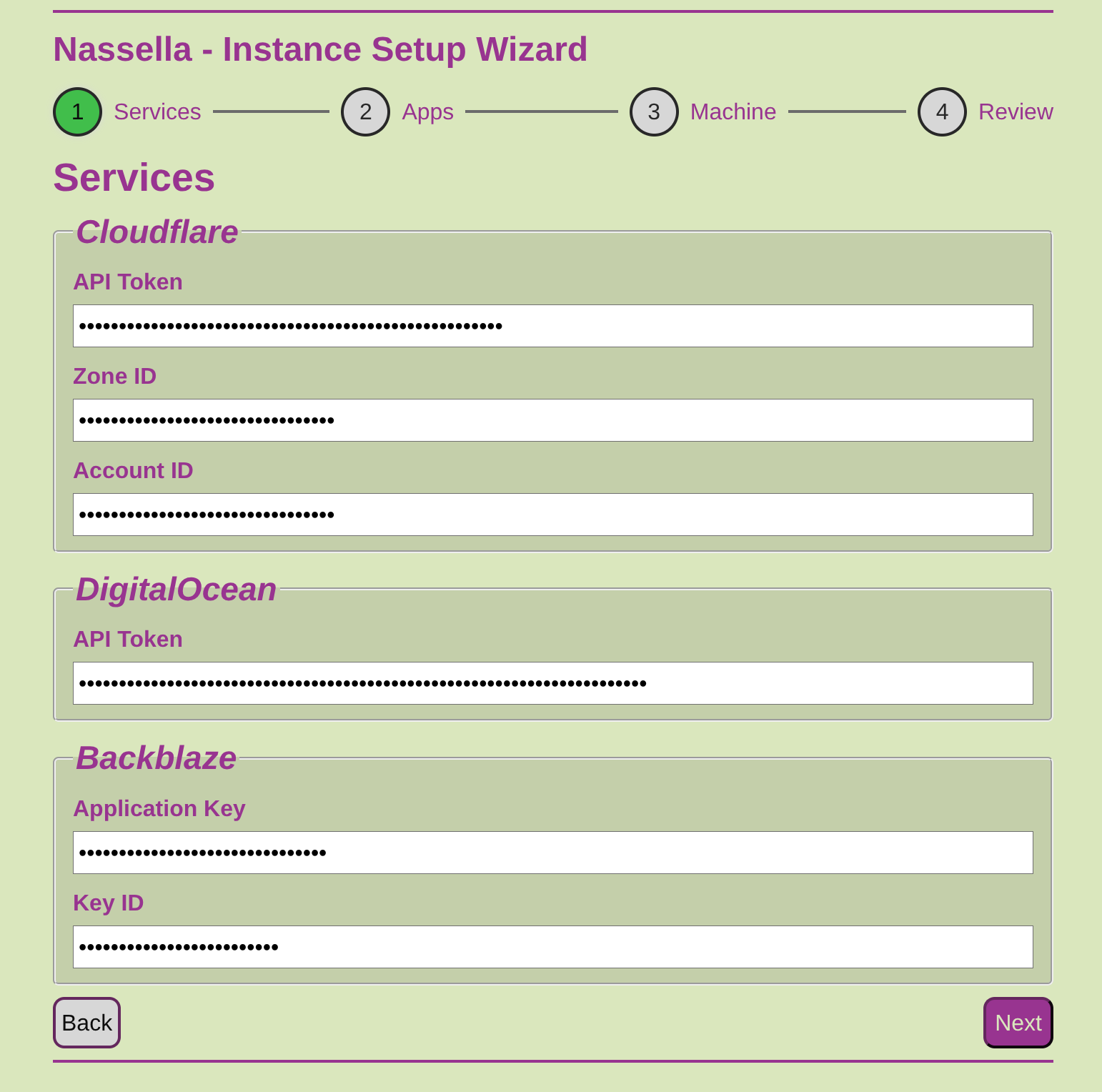
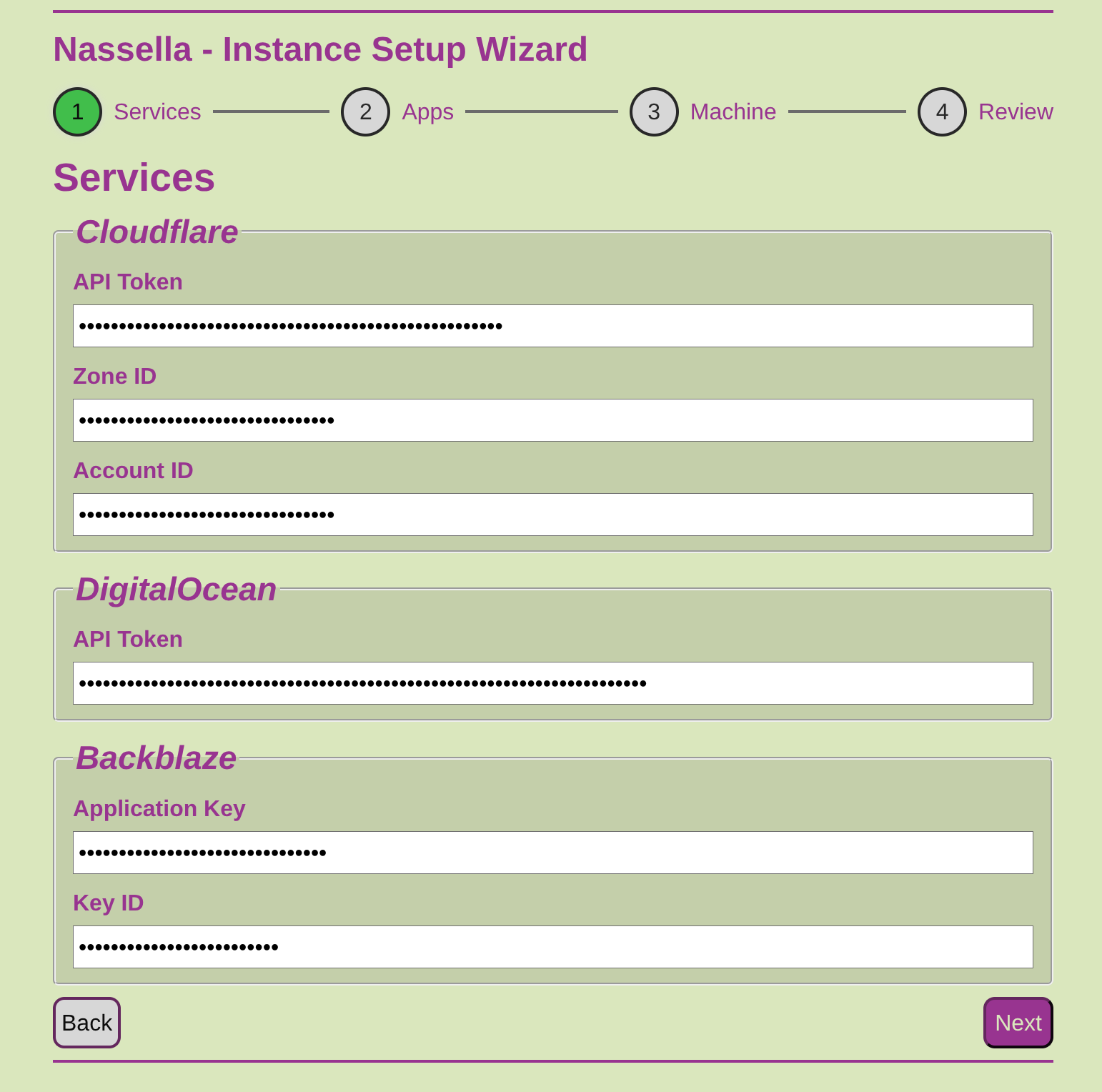
Cloudflare
- API Token
- A Cloudflare API token is a secure, limited access credential used to authenticate requests to the Cloudflare API.
- Zone ID
- A zone in Cloudflare refers to a specific domain (e.g. example.com) and all of its associated sub-domains, settings, and records. The zone ID is a unique, 32-character alphanumeric identifier for this domain.
- Account ID
- The identifies your entire Cloudflare account.
Digital Ocean
- API Token
- A Digital Ocean API token is a secure, limited access credential used to authenticate requests to the Digital Ocean API
Backblaze
- Application Key
- The back blaze application key is a secure, limited access credential used to authenticate requests to the Backblaze cloud storage. Note: If you lose the application key string, you will need to delete and create a new one. There is no way to recover it.
- Key ID
- The ID associated with the application key provided above.
- Click the Next button
Validation
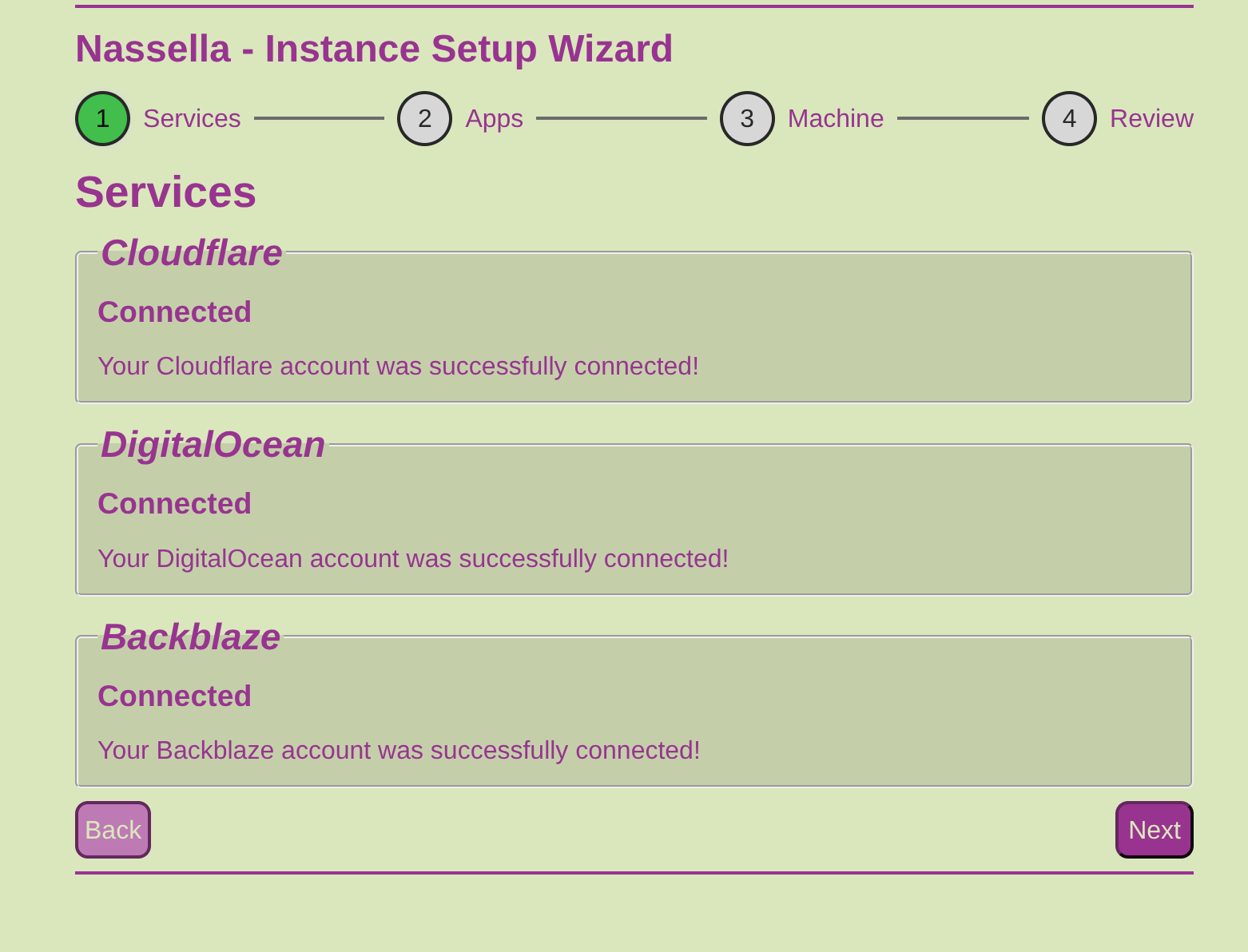
- Nassella will validate that it is able to connect to each service with the information provided. If everything is successful you will see a message similar to the below screenshot.
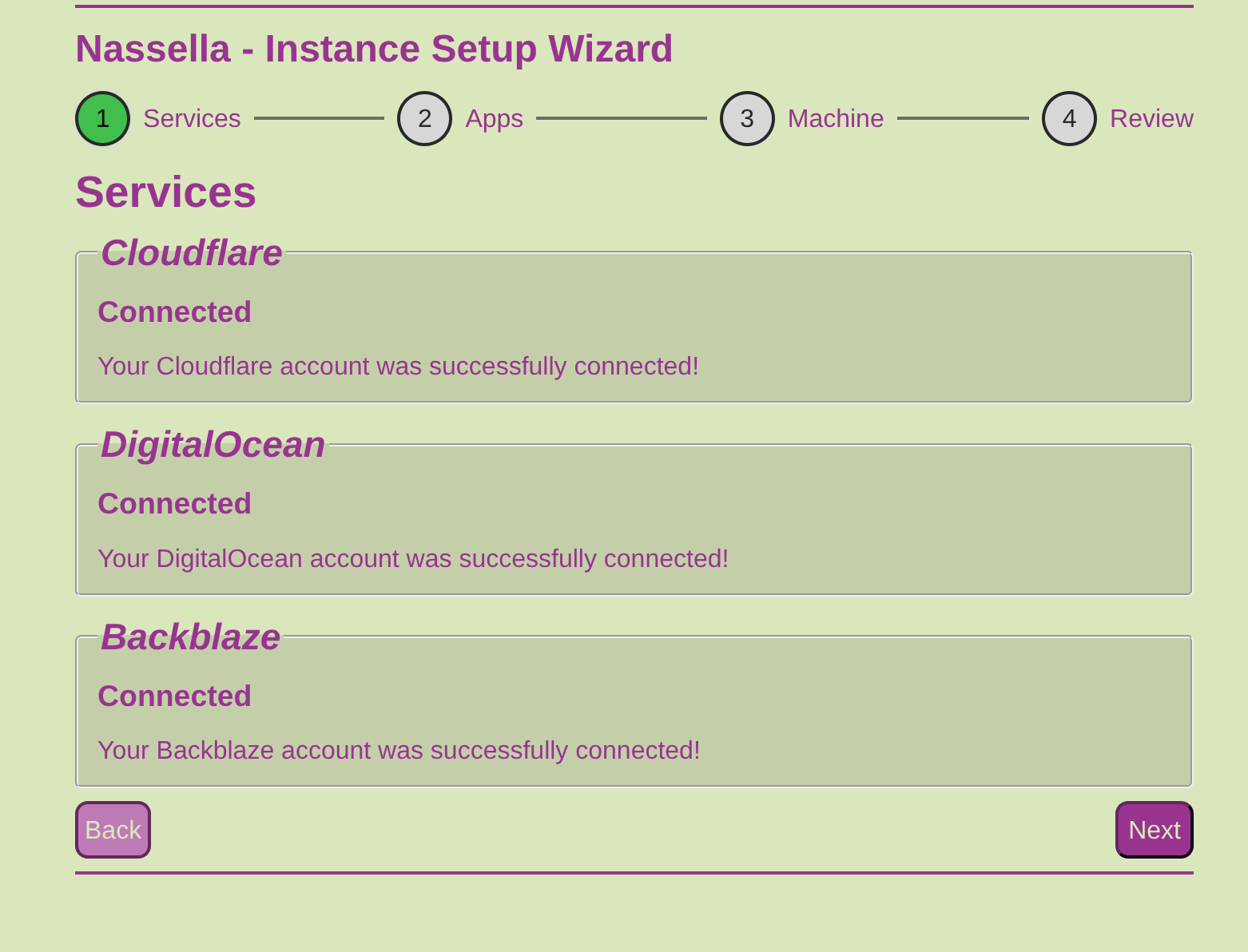
- If there was an issue connecting, Nassella will show you the error message received from the associated service.
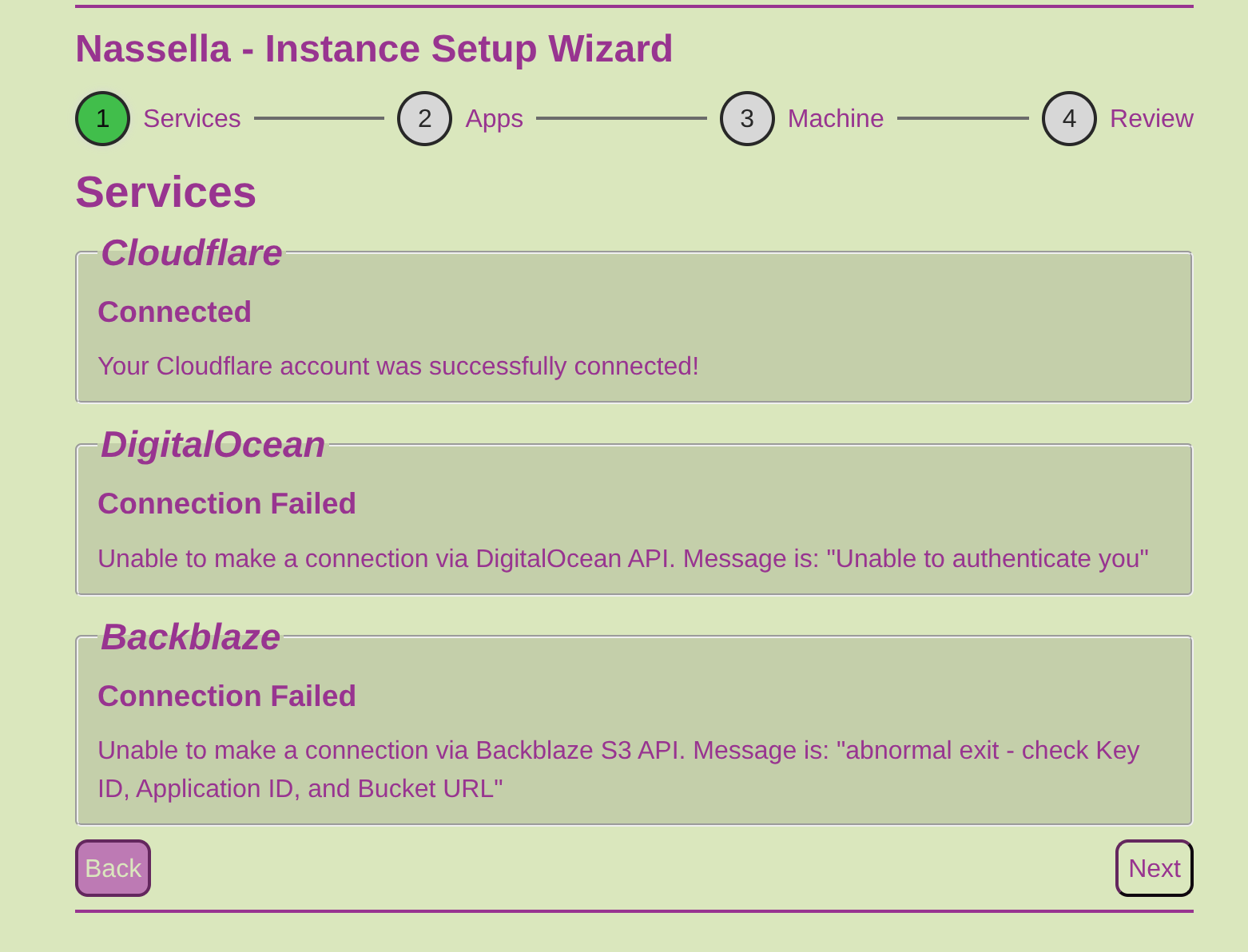
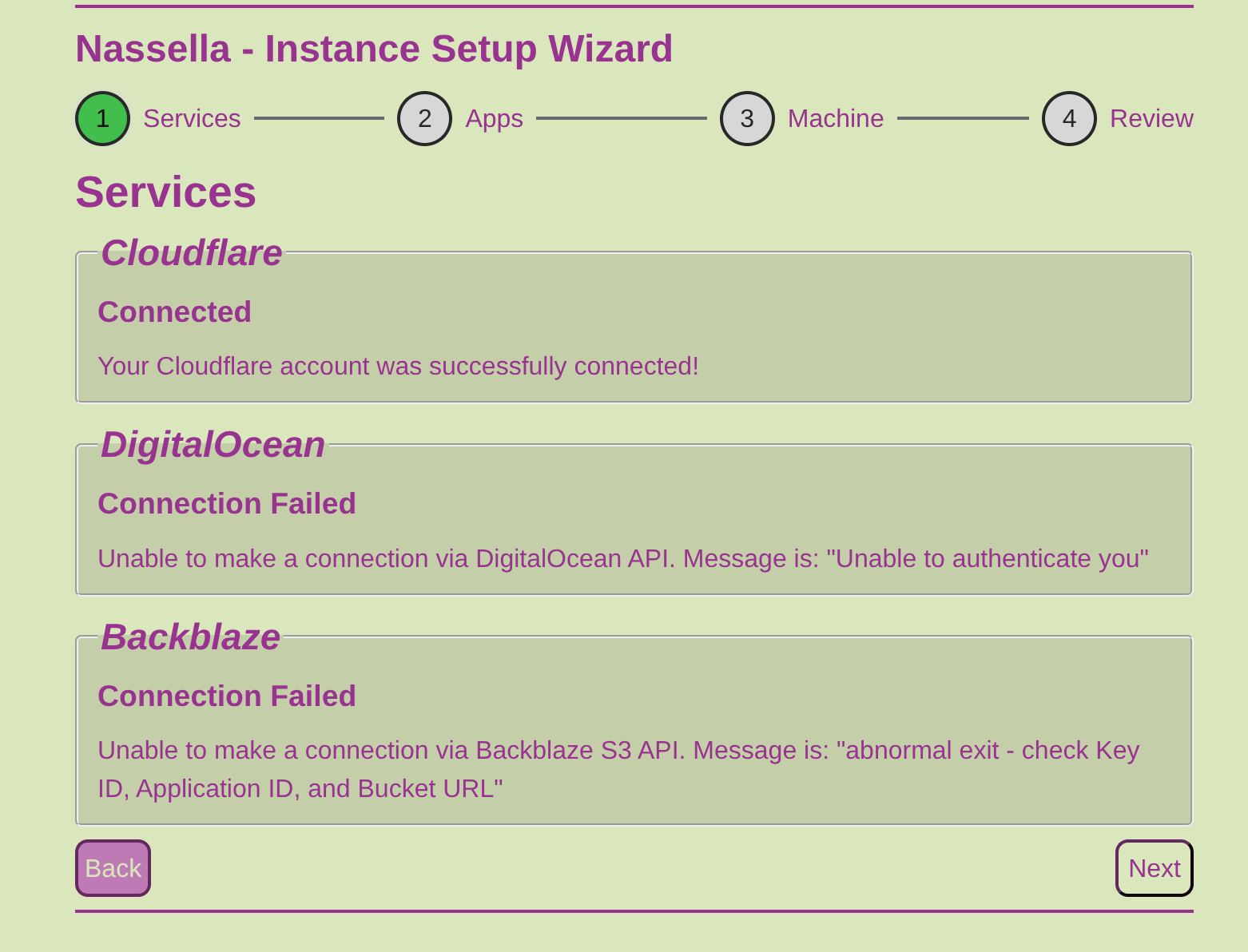
Find troubleshooting advice here.
- Once all of the services have connected, click the Next button
** Note ** Any changes to the connected services outside of Nassella after Nassella is set up may break the communication and effectiveness of Nassella.
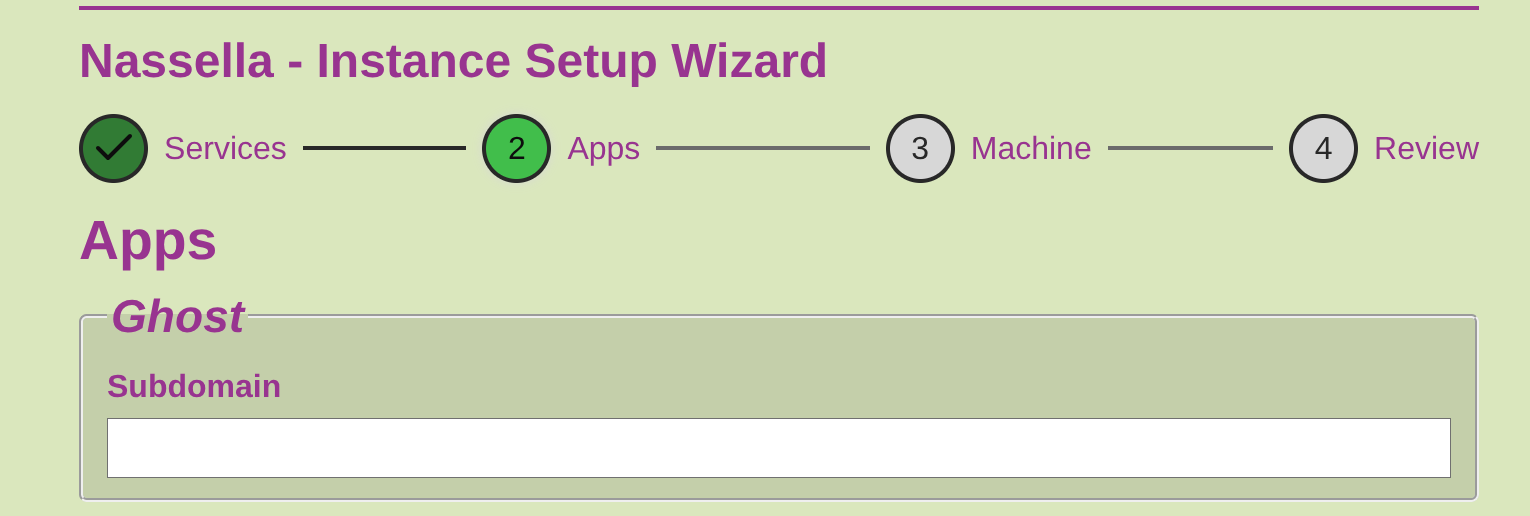
Apps
Now that all of the services are set up, it's time to add the app specific settings.
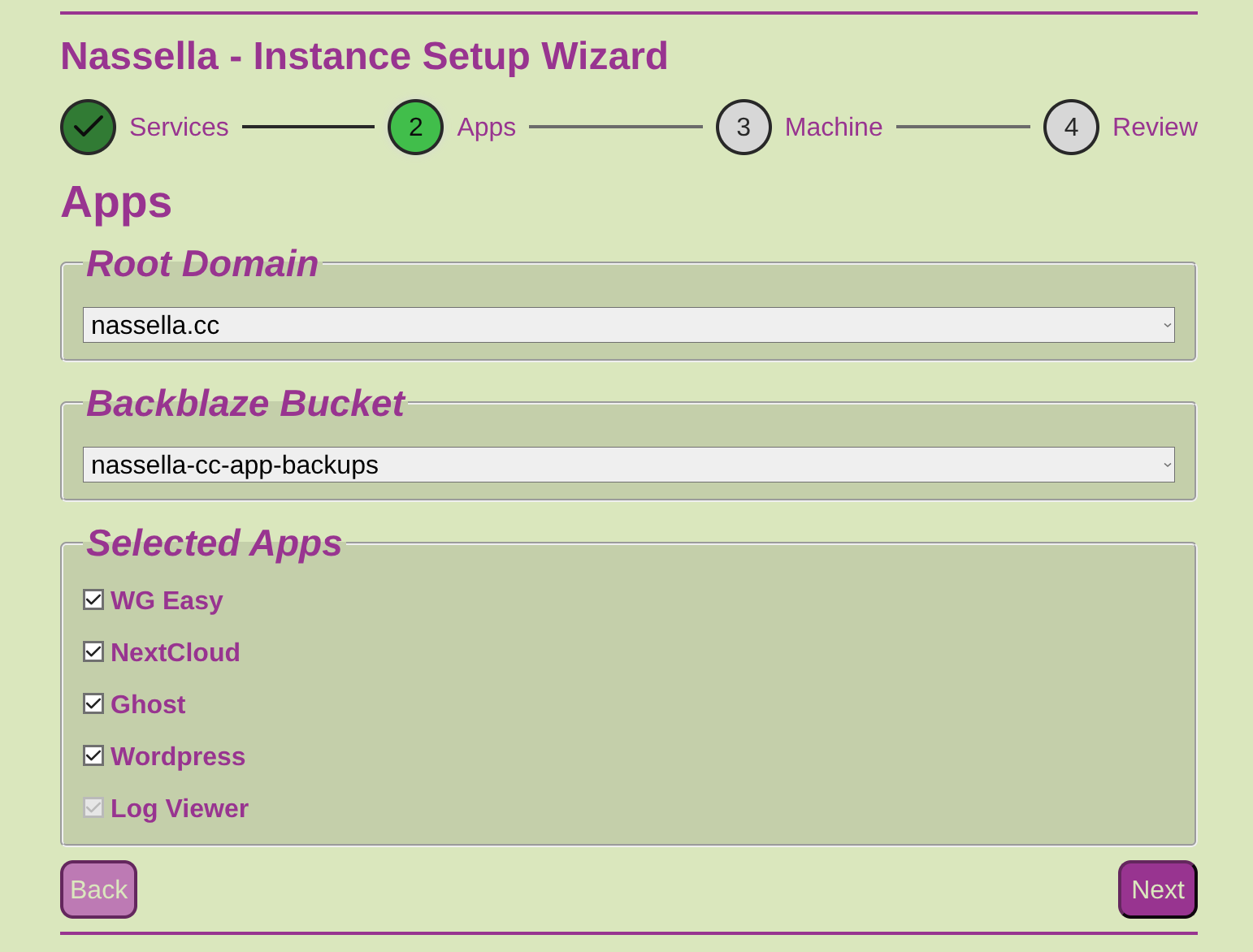
- Enter the root domain. Only domains that are accessible from the Cloudflare API token can be selected.
- Enter the Backblaze Buckut URL. The Bucket URL also called an endpoint is the specific web address used to access your files and send data to a specific Backblaze bucket
- Select the apps you would like Nassella to add and manage. If you would like to see another app here, we would love to connect with you and talk more about it. Contact us here: https://www.nassella.org/contact/
- Ghost
- Ghost is an open-source publishing platform that lets you run a branded website where you can publish articles, send email newsletters, build an audience, and sell memberships or paid subscriptions
- Wg-easy
- Wg-easy is an open source tool for deploying and administering a WireGuard VPN server.
- NextCloud
- NextCloud provides a private cloud workspace for sharing, communication, and collaboration, with the emphasis on ownership and control of the underlying data—often described as a privacy-focused alternative to services such as Google Workspace, Microsoft 365, Dropbox, or Teams.
- Wordpress
- Wordpress is a free, open-source content management system (CMS) for creating and managing websites. It is designed to solve the problem of building and maintaining a website without needing to write everything from scratch.
- Log viewer
- Required. Will allow the user to view detailed logs for everything that happens on Nassella
- Click the Next Button
- Fill in the settings for the apps you selected. If you did not select an app, its settings will not appear here.
- Ghost
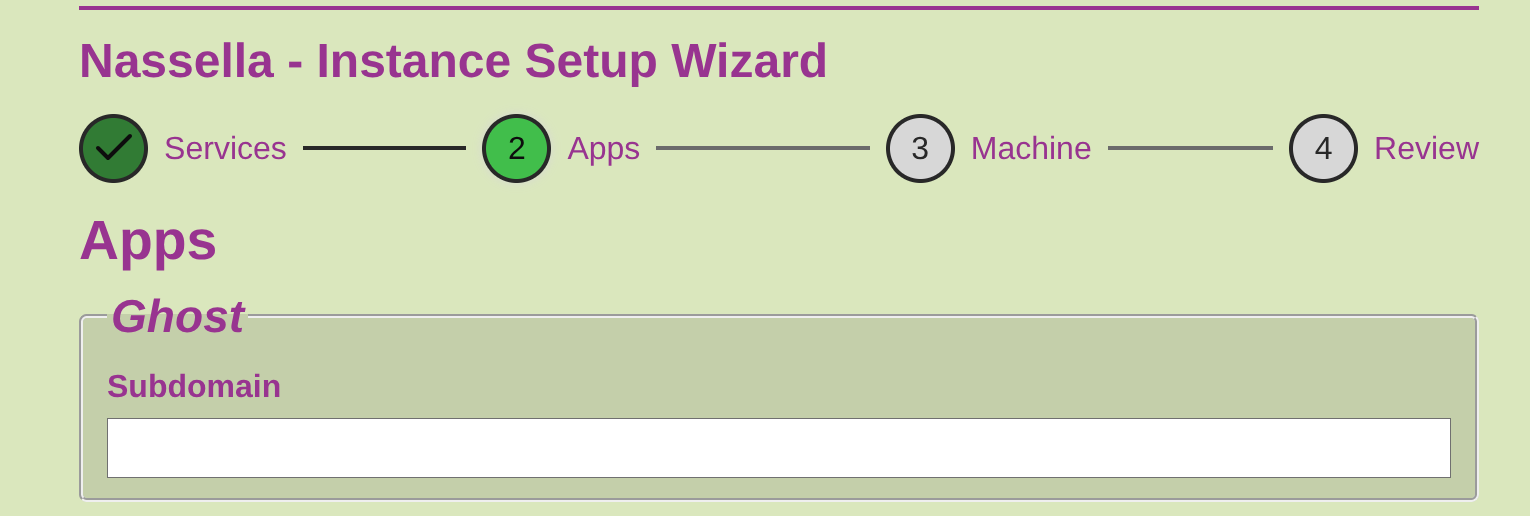
- Subdomain
- A subdomain is a prefix added to your main domain name that allows you to route traffic to specific applications running on your Nassella server. [subdomain].[rootDomain] (e.g. ghost.example.com) This is the name that will appear on the Nassella dashboard.
- Subdomain
- Wg-easy

- Subdomain
- A subdomain is a prefix added to your main domain name that allows you to route traffic to specific applications running on your Nassella server. [subdomain].[rootDomain] (e.g. wg-easy.example.com) This is the name that will appear on the Nassella dashboard.
- Subdomain
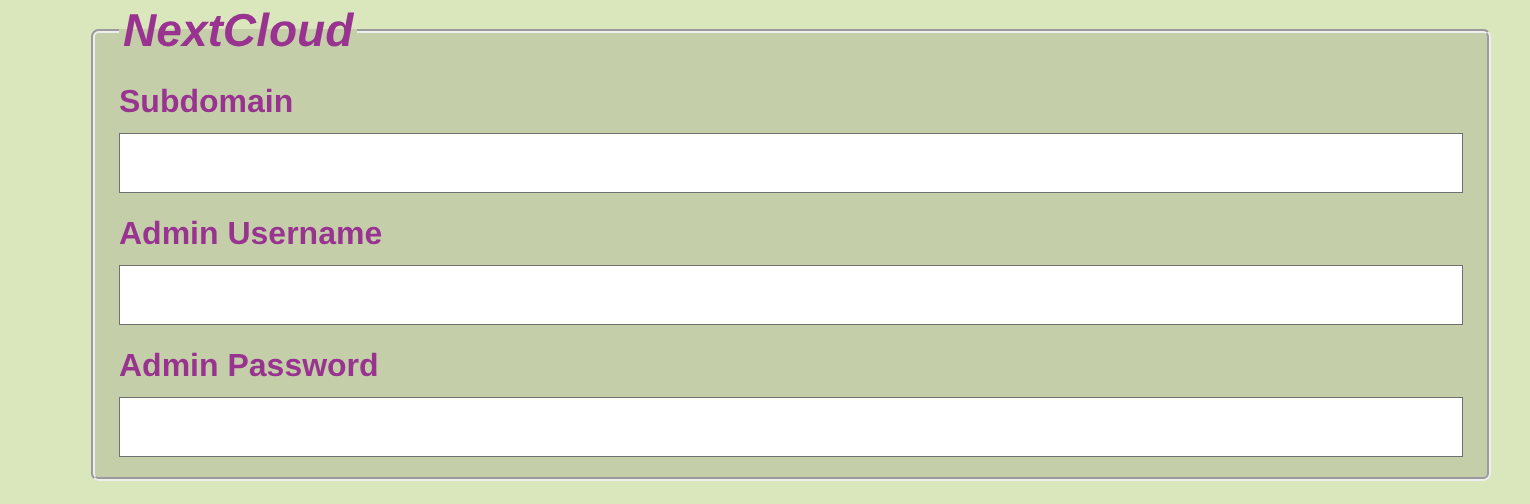
- Next Cloud
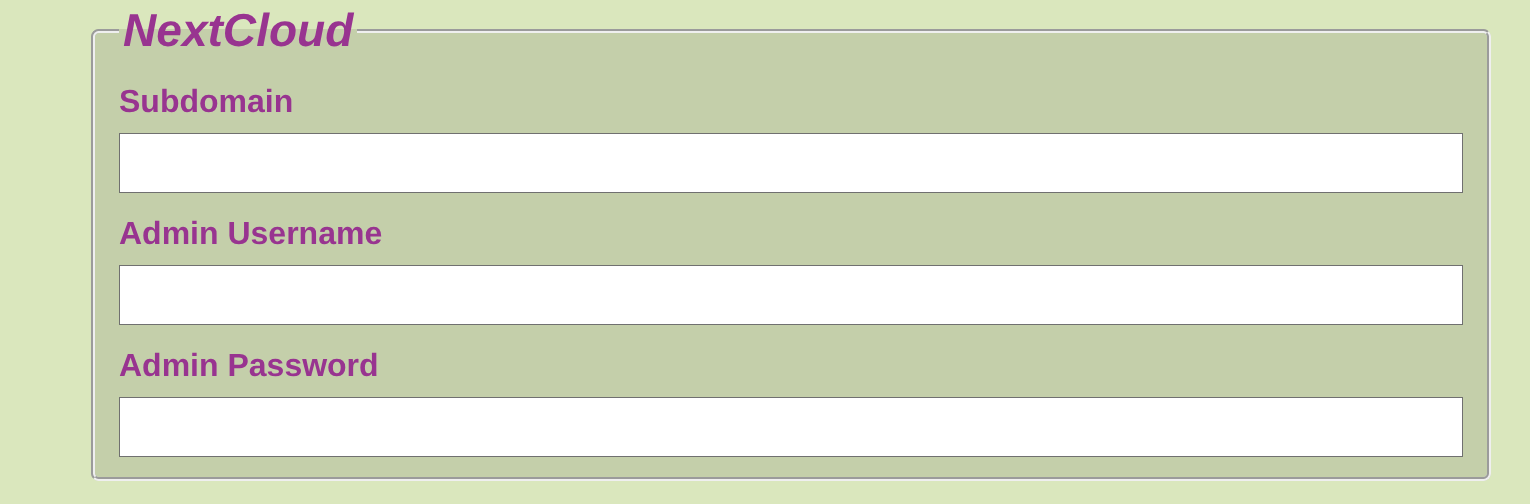
- Subdomain
- A subdomain is a prefix added to your main domain name that allows you to route traffic to specific applications running on your Nassella server. [subdomain].[rootDomain] (e.g. next-cloud.example.com) This is the name that will appear on the Nassella dashboard.
- Admin Username
- Admin Password
- Subdomain
- Wordpress

- Subdomain
- A subdomain is a prefix added to your main domain name that allows you to route traffic to specific applications running on your Nassella server. [subdomain].[rootDomain] (e.g. wordpress.example.com) This is the name that will appear on the Nassella dashboard.
- Subdomain
- Logviewer
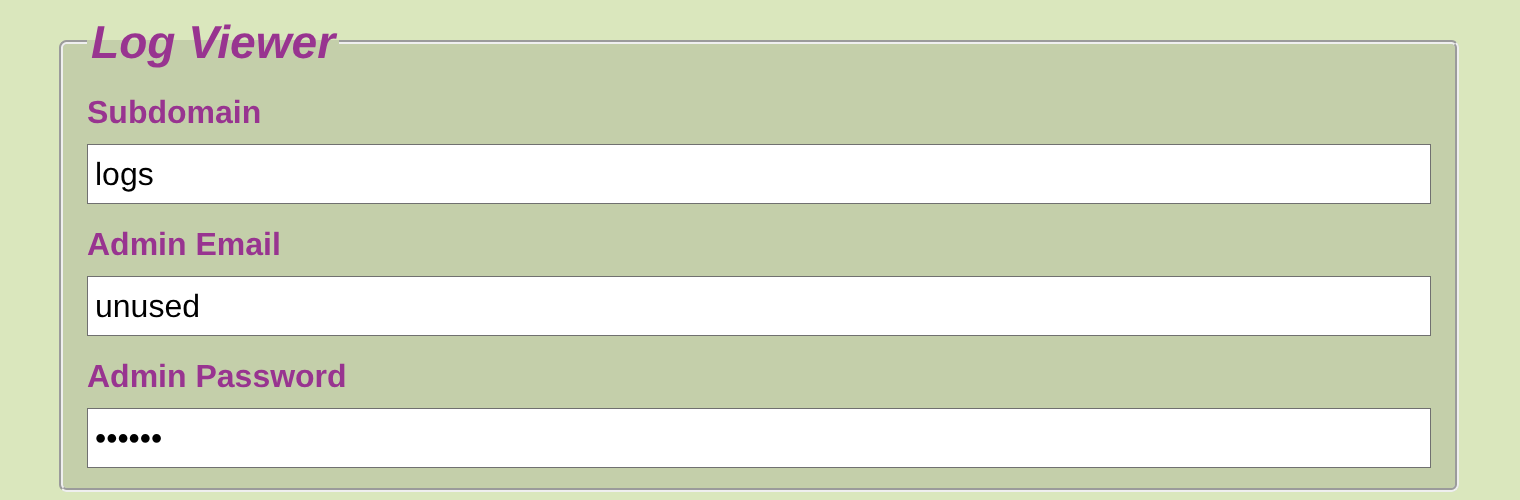
- Subdomain
- A subdomain is a prefix added to your main domain name that allows you to route traffic to specific applications running on your Nassella server. [subdomain].[rootDomain] (e.g. log.example.com) This is the name that will appear on the Nassella dashboard.
- Admin Email
- Admin Password
- Subdomain


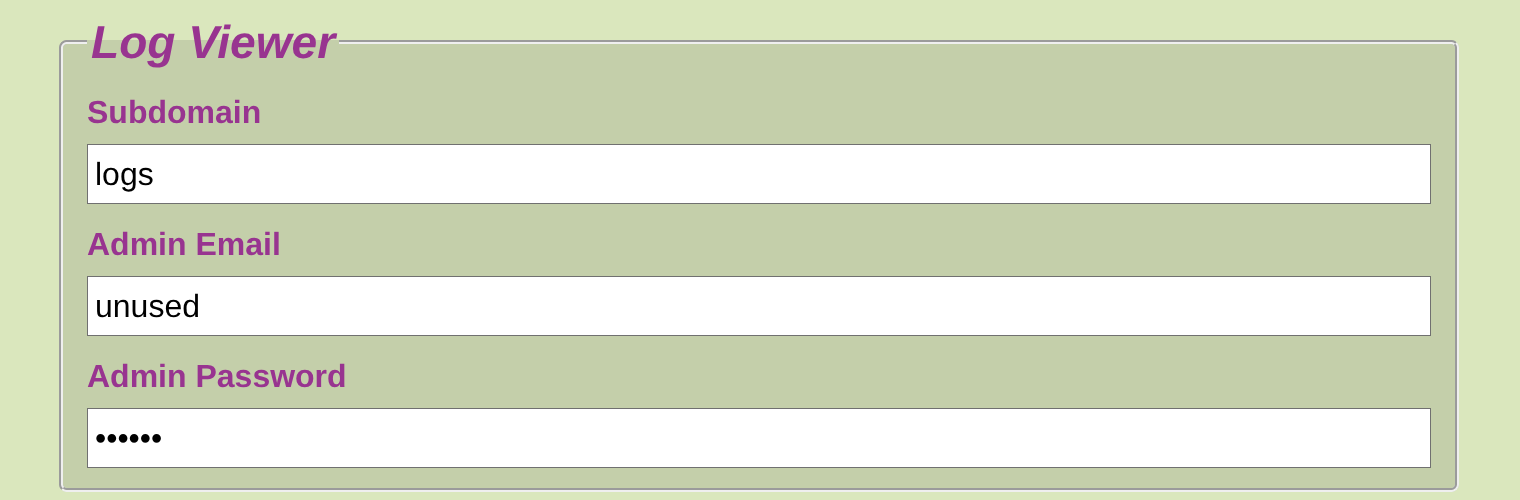
- Click the Next button
Machine
Next, we set up the settings for the machine that will run the selected apps.
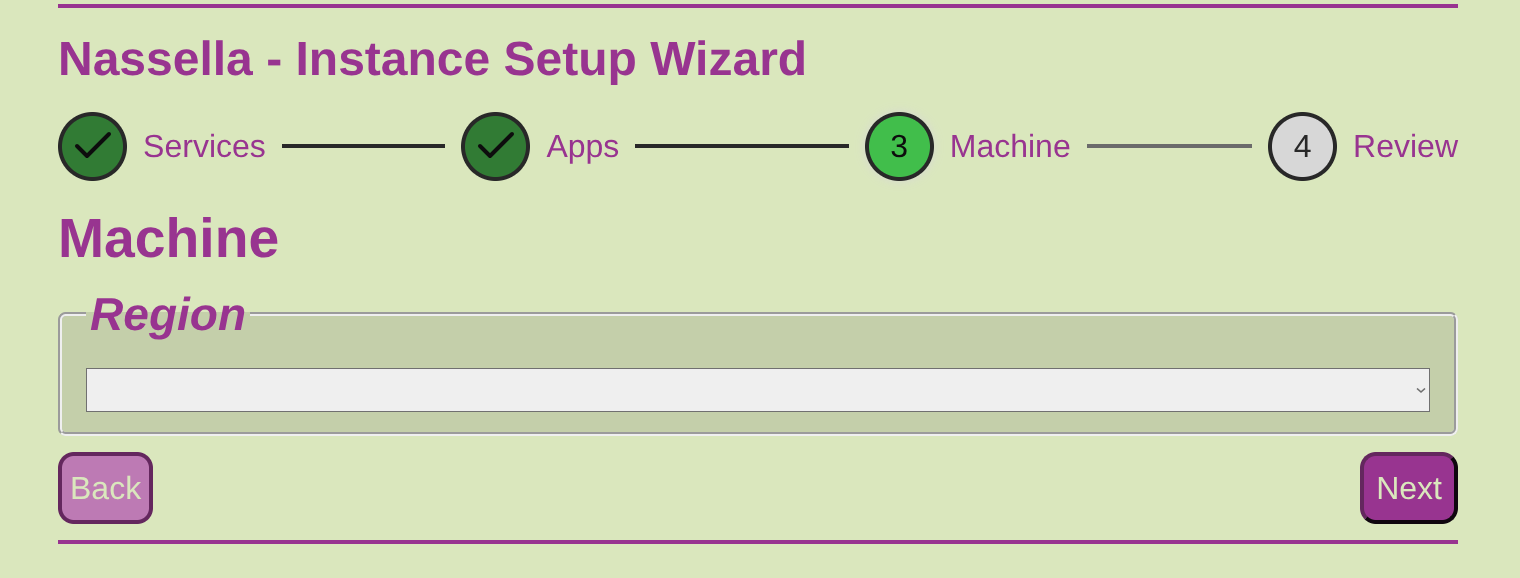
- Enter the settings
- Region
- Use the dropdown to select the region closest to your location.
- Click the Next button.
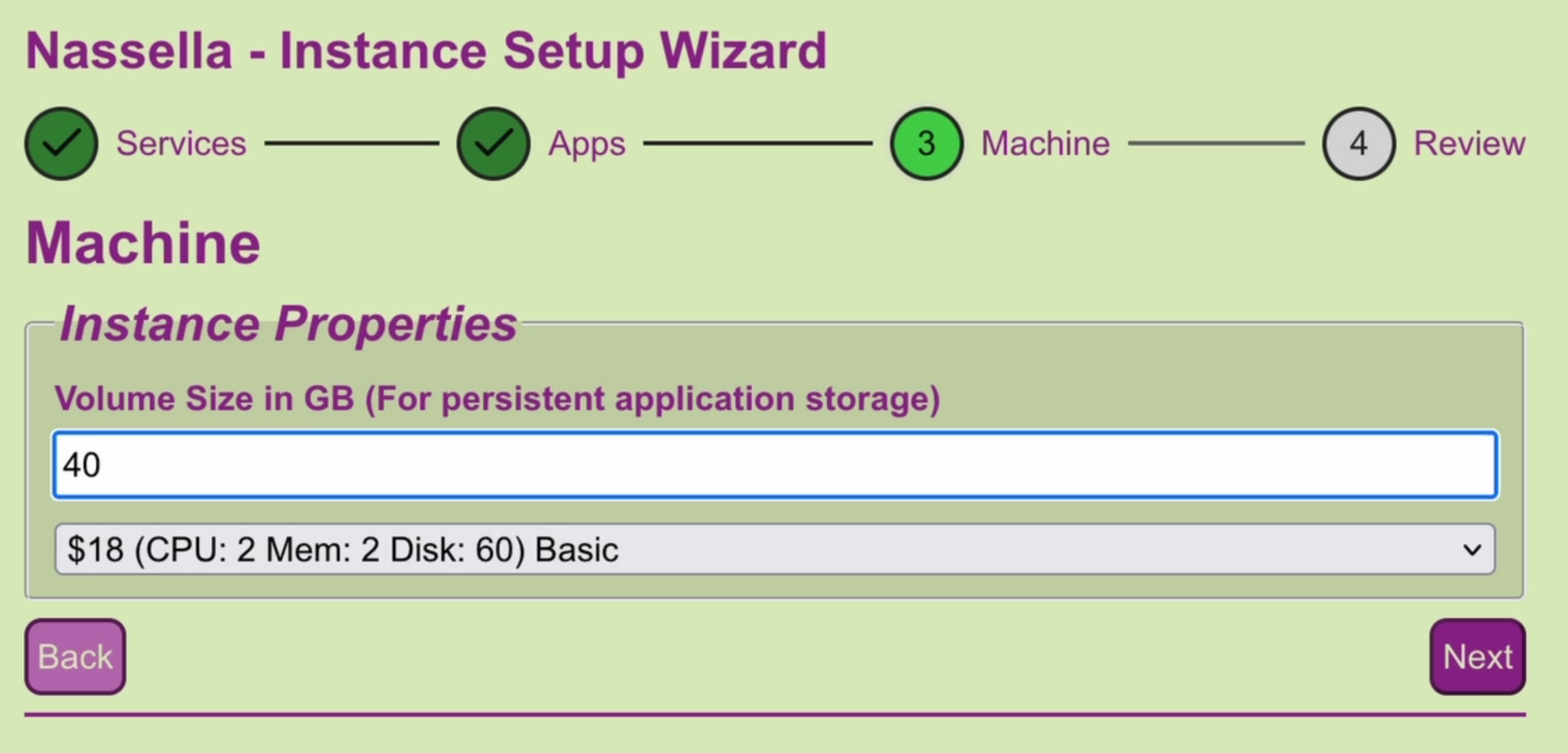
- Enter the settings
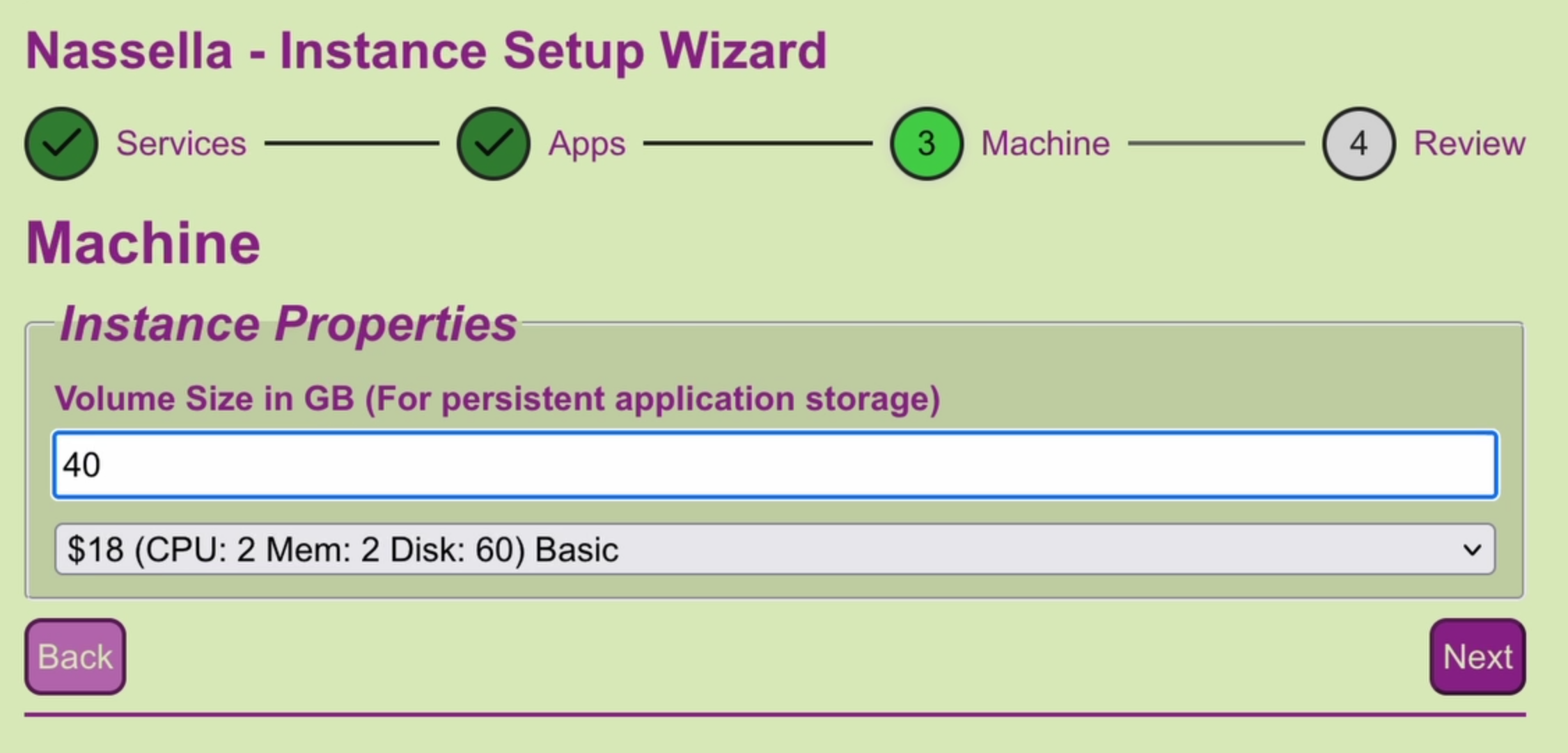
- Volume
- Enter the number of GB for persistent application storage
- Price Dropdown
- Select the architecture from digital ocean that best suits your needs. The price is given on the left.
- Click the Next button.
Review
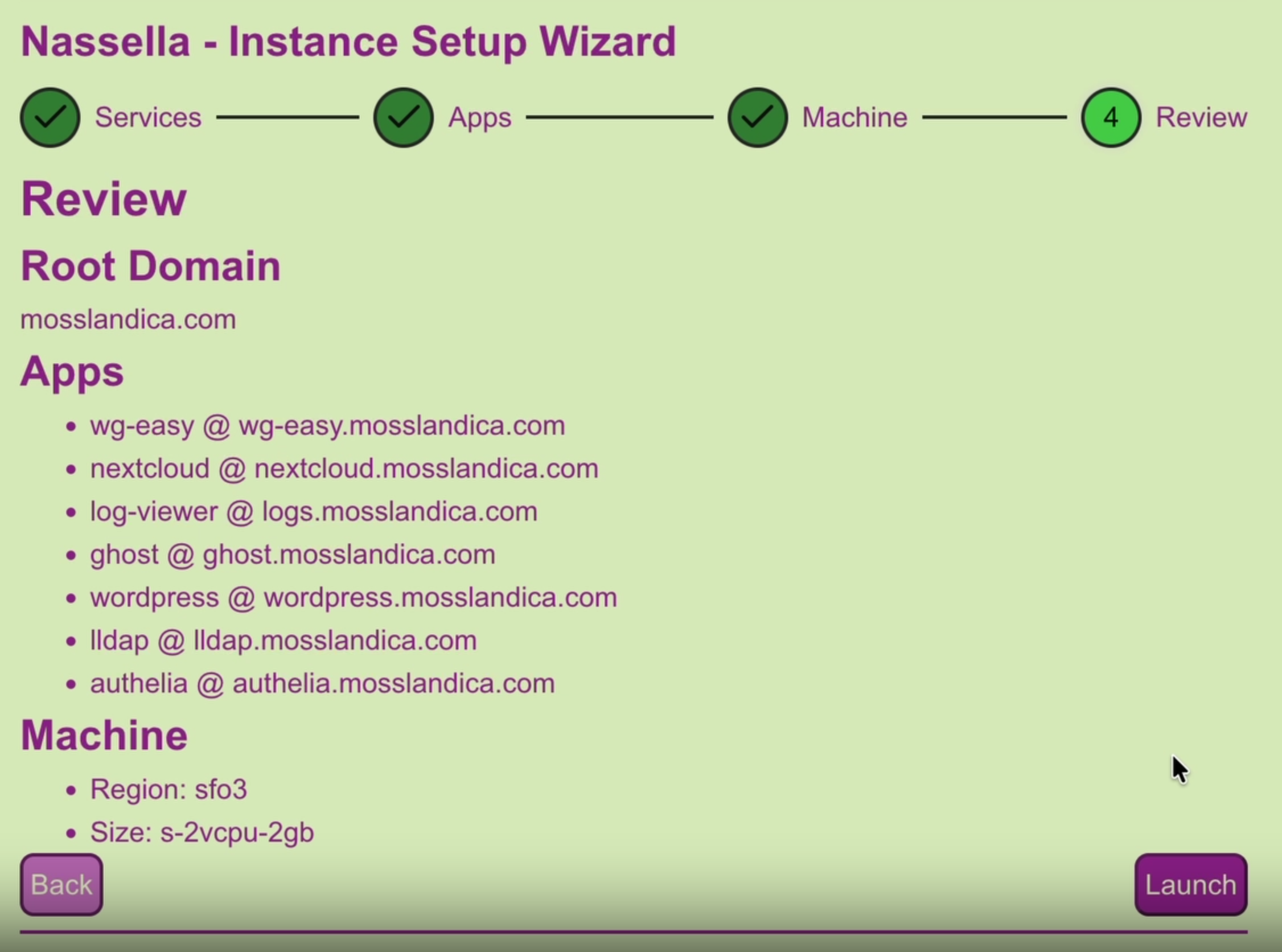
Finally, you can review the settings that you have configured. You can use the Back button to make any changes.
Once you are certain that this is the setup you would like to use, click the Launch button. These settings can be adjusted in the future using the Nassella dashboard.
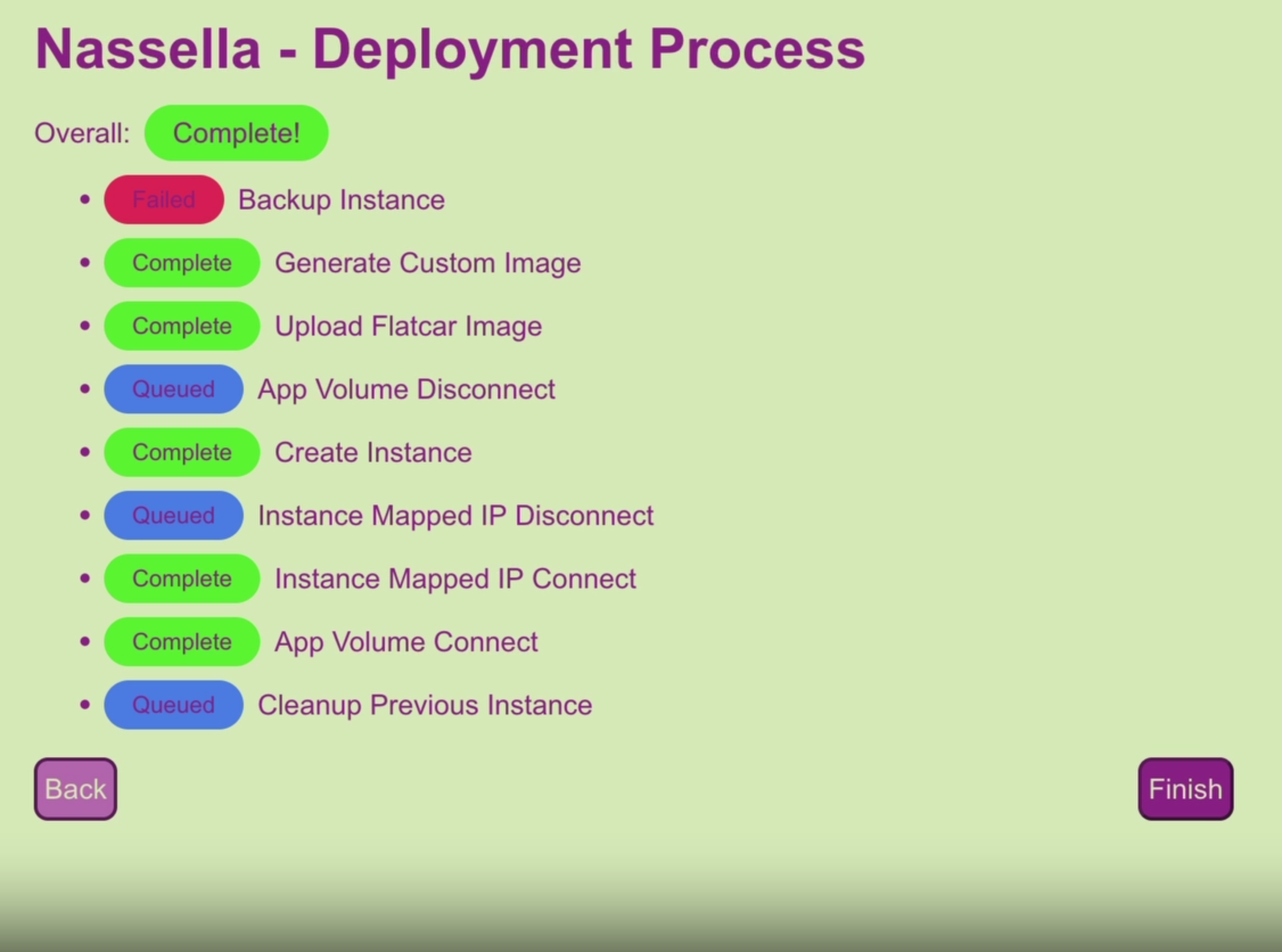
After launching you will see a list of deployment tasks and their status. When it is complete, the Finish button will become available.
** Notes **
- If a step is not needed for your deployment, it may stay with the 'Queued' status
- On the first deployment, it is expected that the 'Backup Instance' step will fail as there is currently no instance to backup.